How can I run COUNTER/SUSHI reports?
COUNTER Reports
We’re pleased to share that we offer the ability to extract electronic resource data usage through COUNTER reports.
Step 1.) Begin by logging into your admin dashboard
To learn more about how to login to your admin dashboard start here: https://www.mediaed.org/knowledge-base/logging-into-your-admin-dashboard/
Step 2.) Once you’re at the admin dashboard, your homepage should resemble the screenshot below.
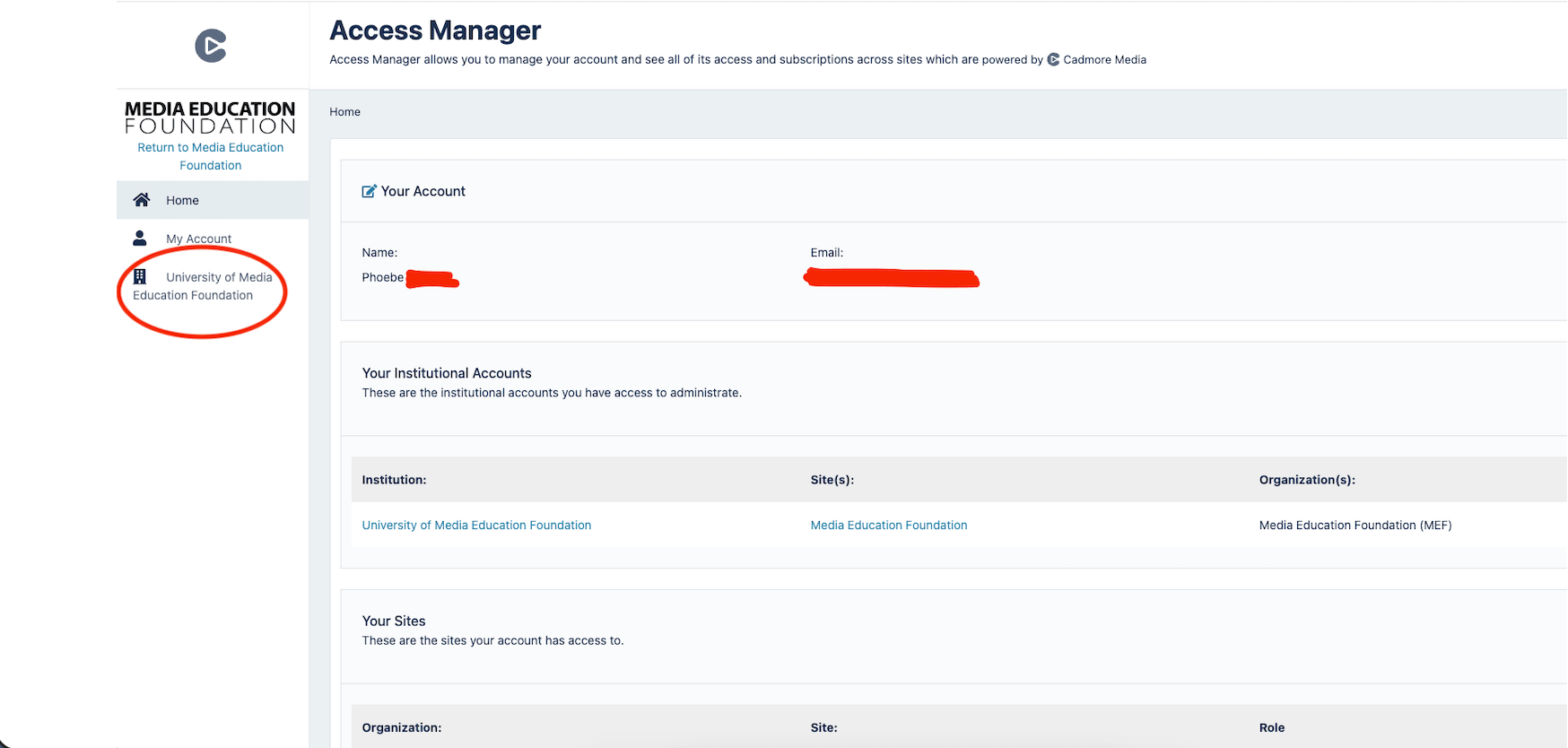 On the left side of this page you will see a tab under “My Account” that will have your Institution Name. Click on the institution name. In this example, the name is the University of Media Education Foundation.
Step 3.) Once you are on your institutions page scroll down the page until you see “COUNTER Reports”.
You will notice that there are various types of reporting you can process based on dates, metrics, and types of data.
Follow the instructions via the tool and then select “Process Report.”
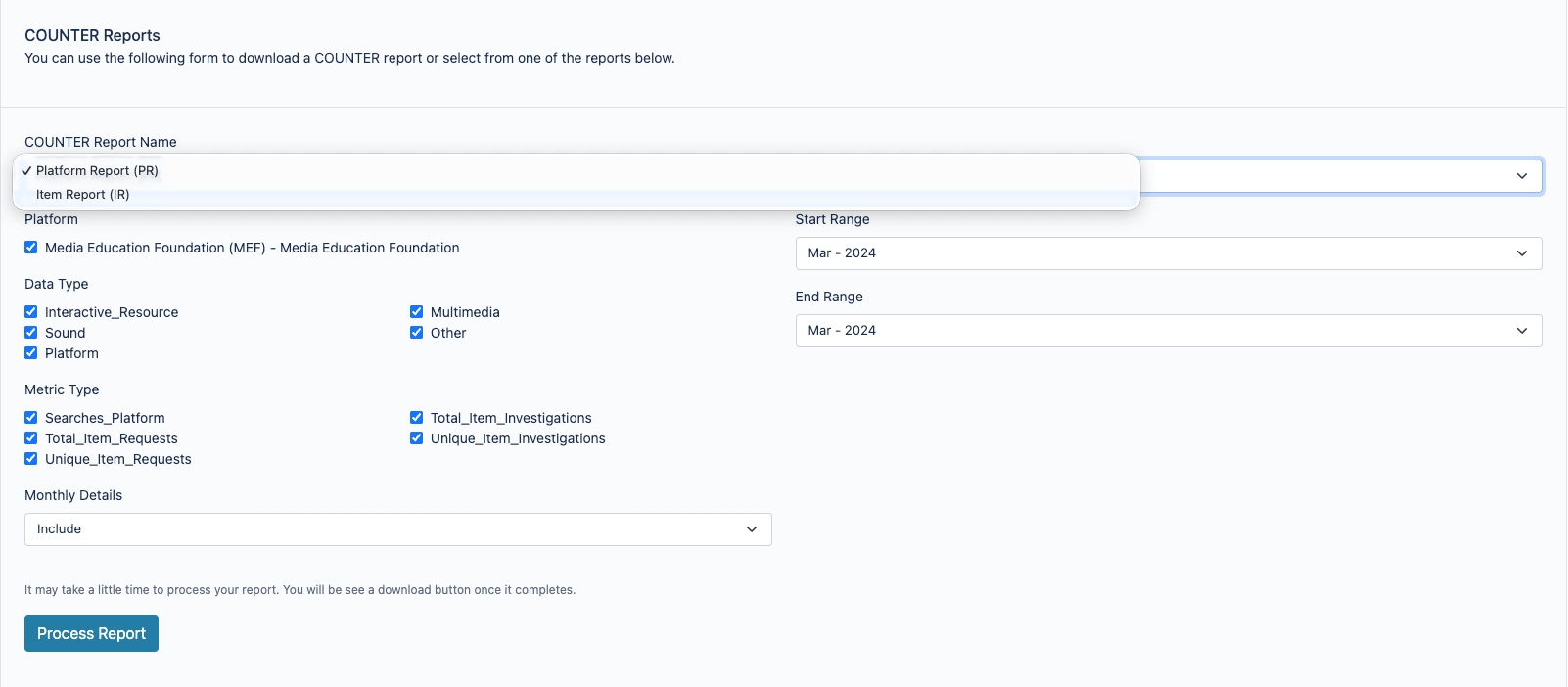
Step 4.)
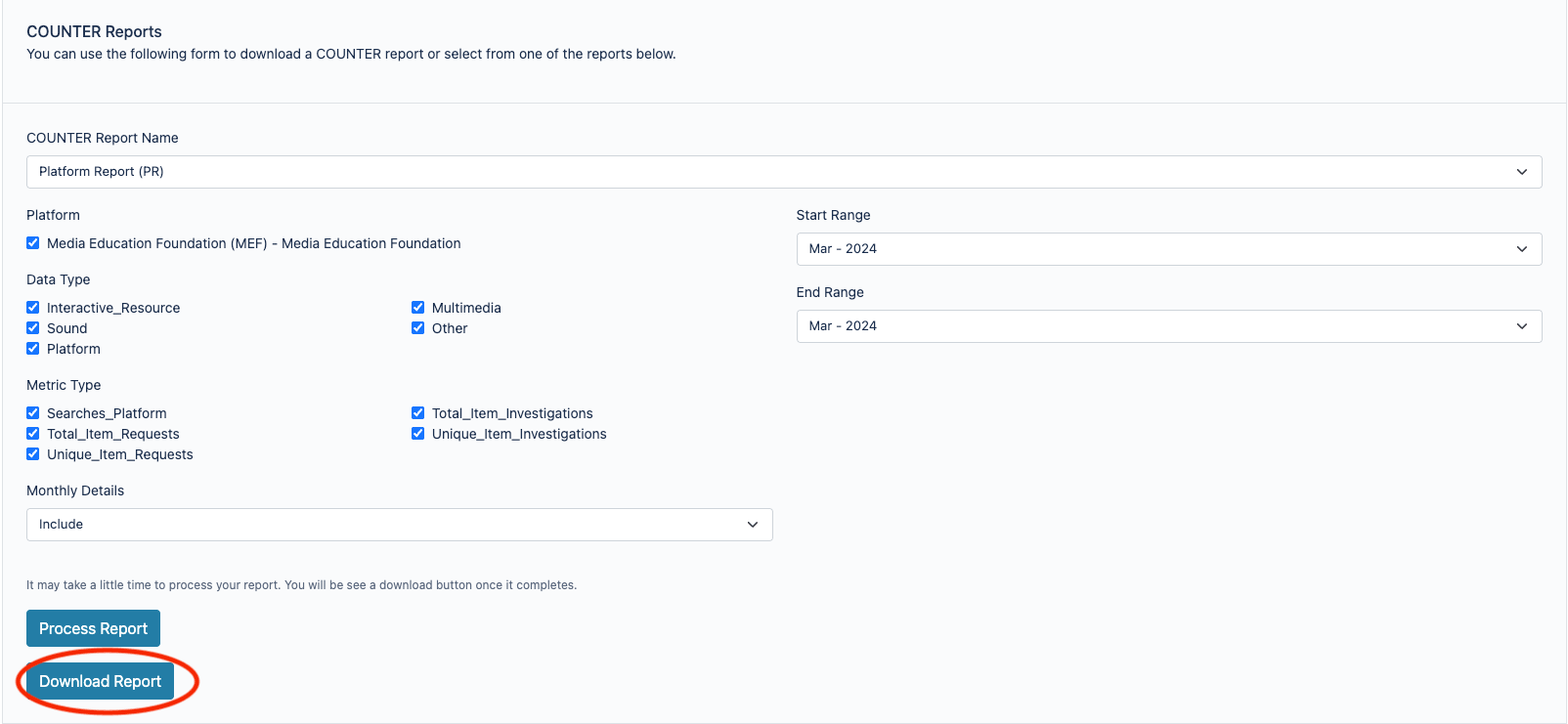
After the data has finished processing, you will notice an option appears to “Download Report”.
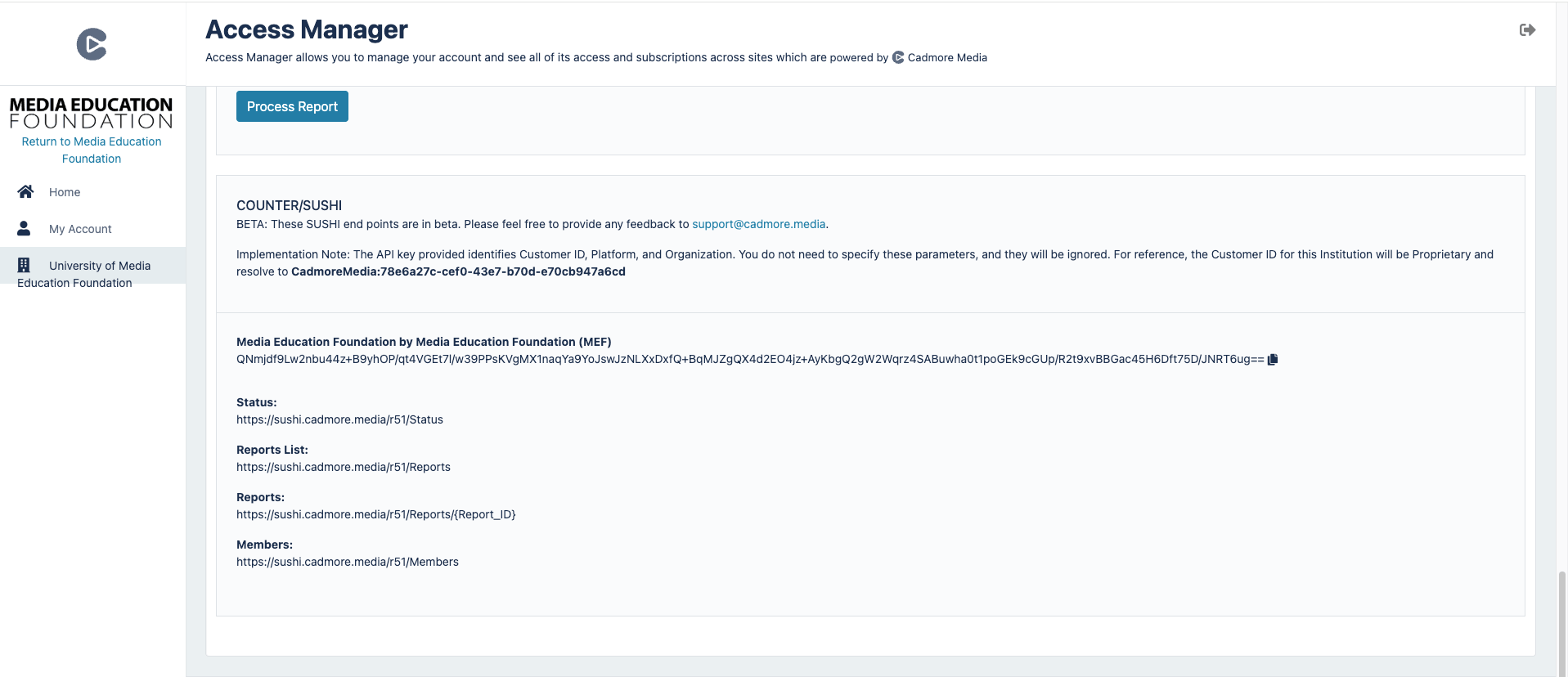
COUNTER/SUSHI
If you would like to try configuring your credentials into your SUSHI harvesting tool, you may access these reports utilizing the schema shown below.
You’ll find this tool directly below COUNTER reports.
Still Need Help?
Please don’t hesitate to get in touch with us via phone, chat, or email for assistance. We’re happy to help with questions big or small!
Email: [email protected] | Phone: 413-584-8500